Your booking link
Set up the one link that lets families find you, see what you offer, and book.
Updated June 30, 2026
Your booking link is a single page that introduces you and lets families book in
a few taps. It is the one link you put in your bio, your texts, and your flyers.
Set up your page
Open Public profile from the sidebar. Fill in:
- Your display name, a short headline, and where you train
- A bio and a photo
- Your page link, which is a handle you choose at the end of your address
You can also feature one offering, turn on a 1:1 booking link for private
sessions, and show a See all sessions link so visitors can browse everything
you run.
Add your social and payment links
The Your links section is where you add your social profiles and the ways
clients pay you, like Venmo, Cash App, Zelle, and PayPal. Tap
Add link, pick the type, give it a label, and paste the address. Drag them
into the order you want, and they show up as buttons on your page.
Publish and share
Check Publish my page, then save. A share card appears with your link, a
Copy button, and a QR code. Copy the link for texts and social bios, or show
the QR code in person for a quick scan. View page opens it the way a family
will see it.
What families see
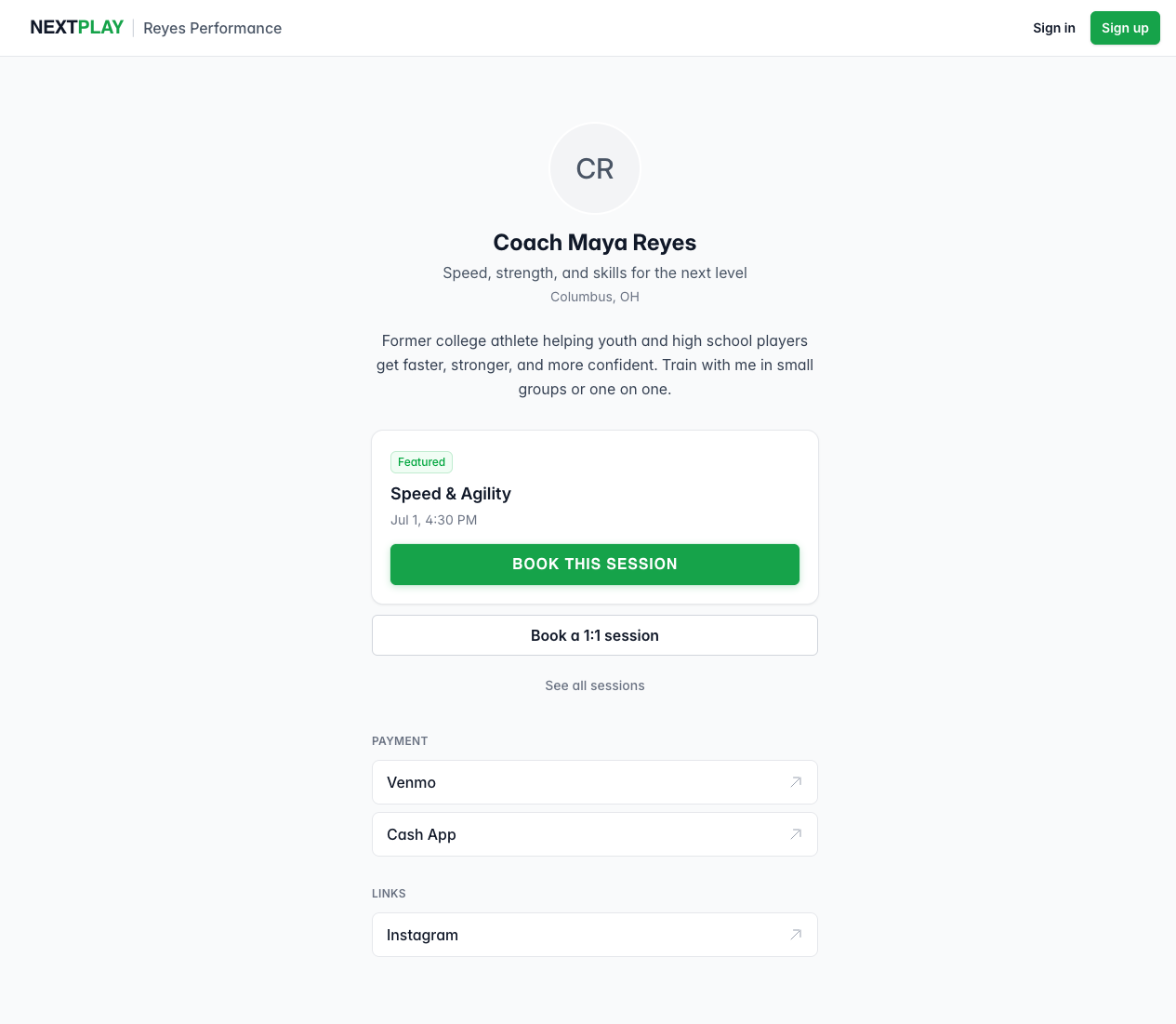
On your page, a visitor can:
- Book your featured offering with one tap
- Book a 1:1 session if you turned that on
- Open See all sessions to browse the rest
When they book a paid session, they sign in or create a free account and pay at
that moment. To set prices and payouts first, see
getting paid with Stripe.
Was this helpful?